LM Studio
Get LM Studio for free by navigating to the official website: https://lmstudio.ai/ (not open source), or use the tools available in the GitHub repositories: https://github.com/lmstudio-ai (MIT license) to run local AI models privately on your computer. Configuration defaults for Apertus can be found in the LM Studio hub: https://lmstudio.ai/swiss-ai
Installation
This guide focuses on use with Mac, however everything shown here is also possible with the Windows and Linux editions. You can even run LM Studio on small devices with an ARM processor, like the Raspberry Pi. After the initial setup wizard, you should be presented with Mission Control, where you can search for models of your choice from the huge catalog at Hugging Face. Type ‘Apertus’ to see a list of the many community-built versions.
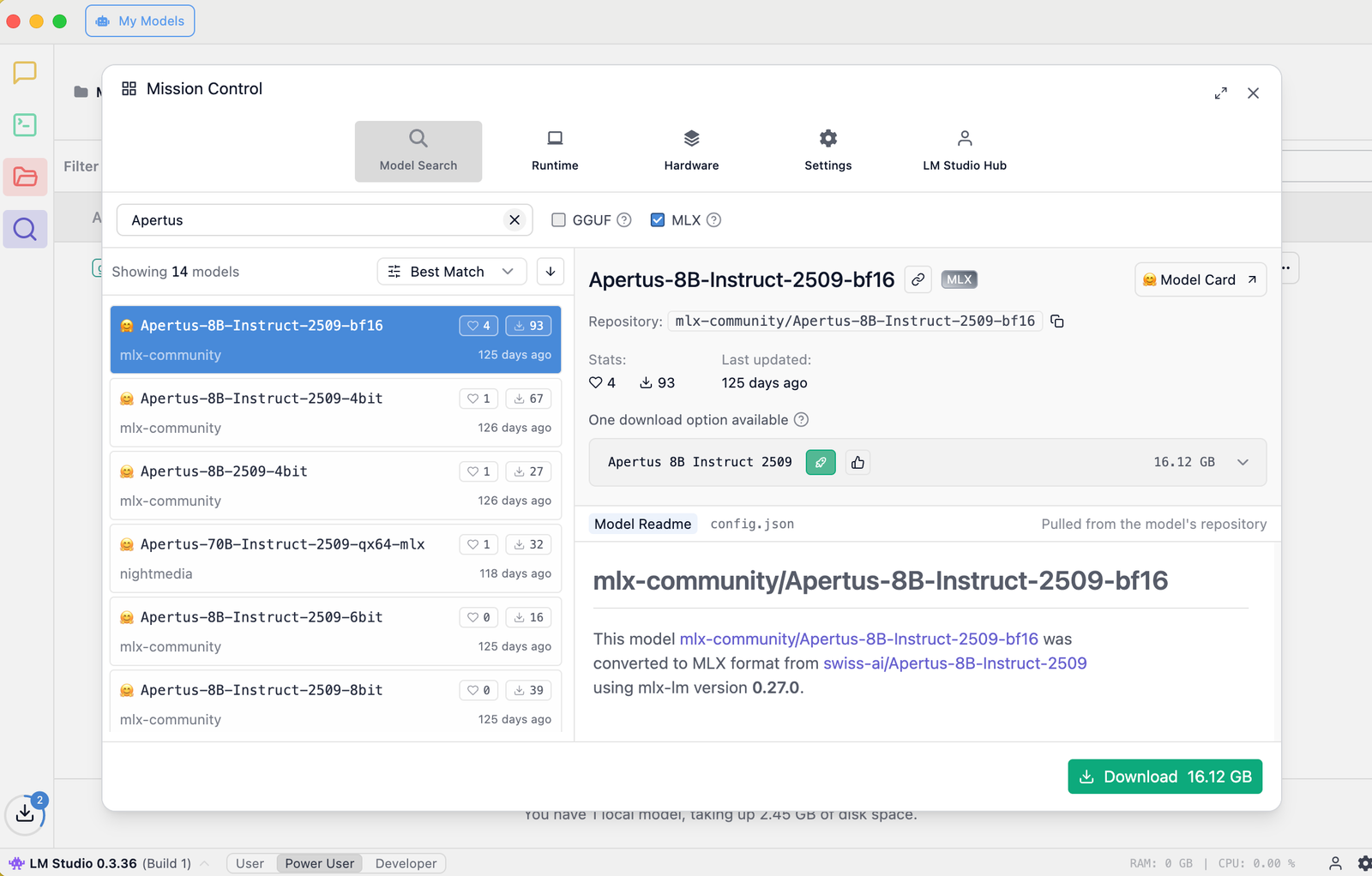 Click the gear on the bottom right to bring up Mission Control
For use on a Mac with Apple Silicon (MLX), pick a community remix, such as:
- Andreas Martin (1.5 8B)
- Mirko Casu (1.5 8B)
- mlx-community (1.0 8B, 70B)
Click Download on the build and size of the model that you prefer. There is an indicator on the right side that shows if the weights are likely to fit in your available memory.
Loading the model
It took about 15 minutes to download the model on a fast connection.
If all goes well, after you select the model, LM Studio will begin to load it into the memory of your machine. This warm-up process may take one or two minutes.
When the Load model button in the screenshot below is clicked, you may however see a “Failed to load the model” dialog that cautions about insufficient system resources.
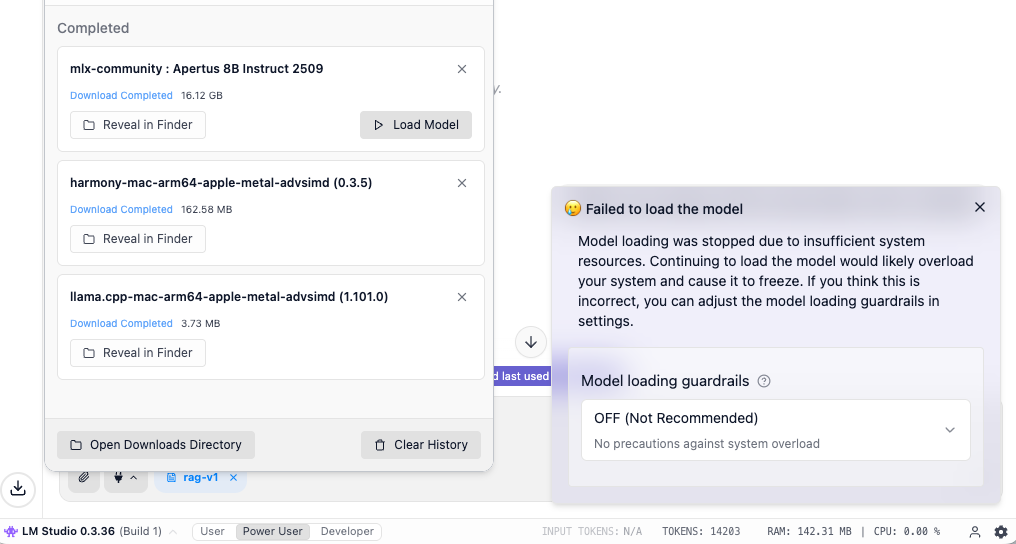
You can disable this guardrail (set to OFF), or try to download a smaller version of the model. The risk is that your computer may freeze if the memory is completely full. Watching memory consumption using the Activity Monitor or a similar tool is recommended.
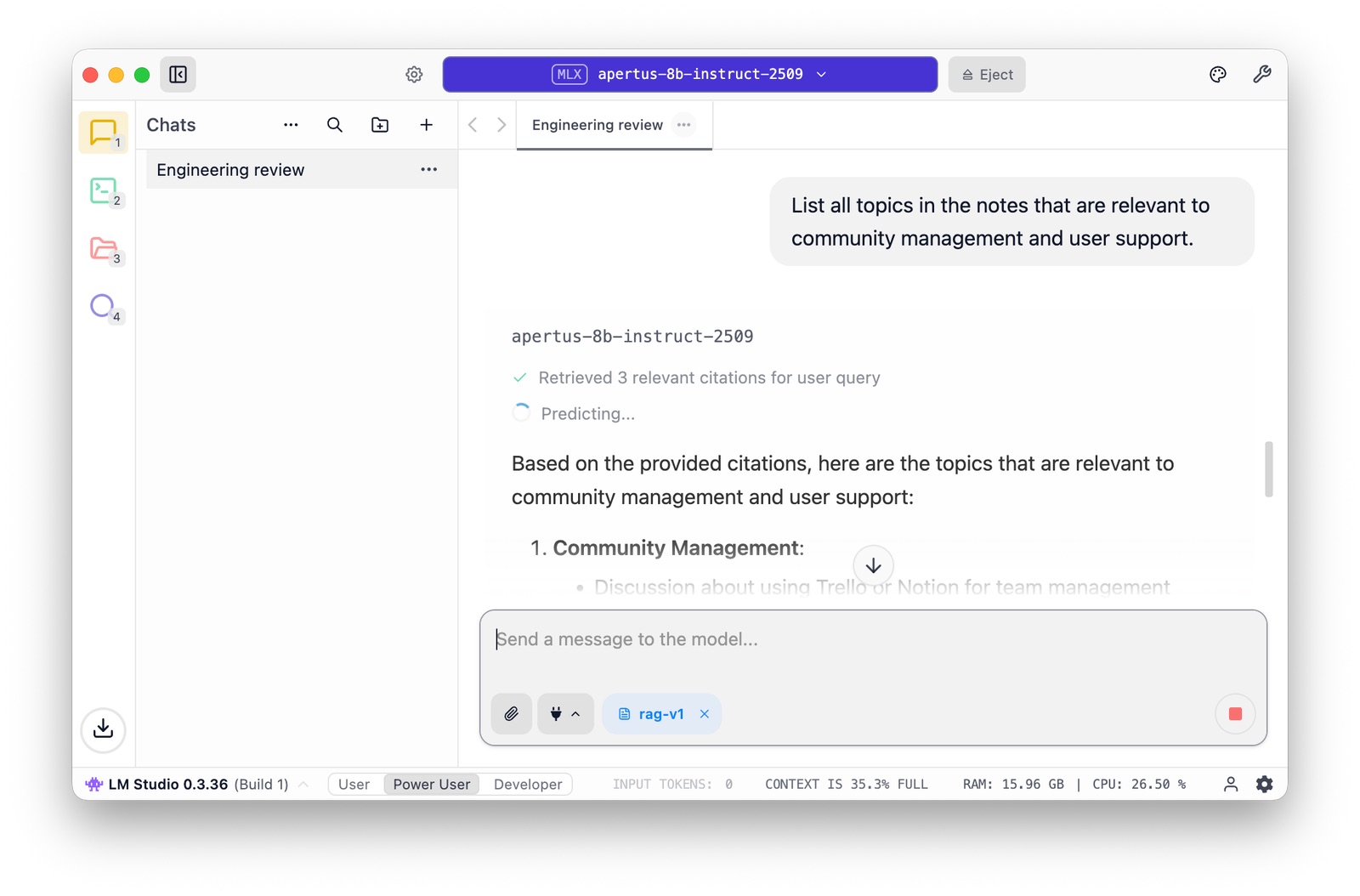
Now you can start chatting, uploading files to set up a RAG - all in the privacy of your local GPU. It may not work as quickly or comprehensively as you are used to, but at all times you remain in control of your algorithm.
As mentioned above, we recommend using the system prompt and temperature settings specified in the LM Studio hub.
Troubleshooting
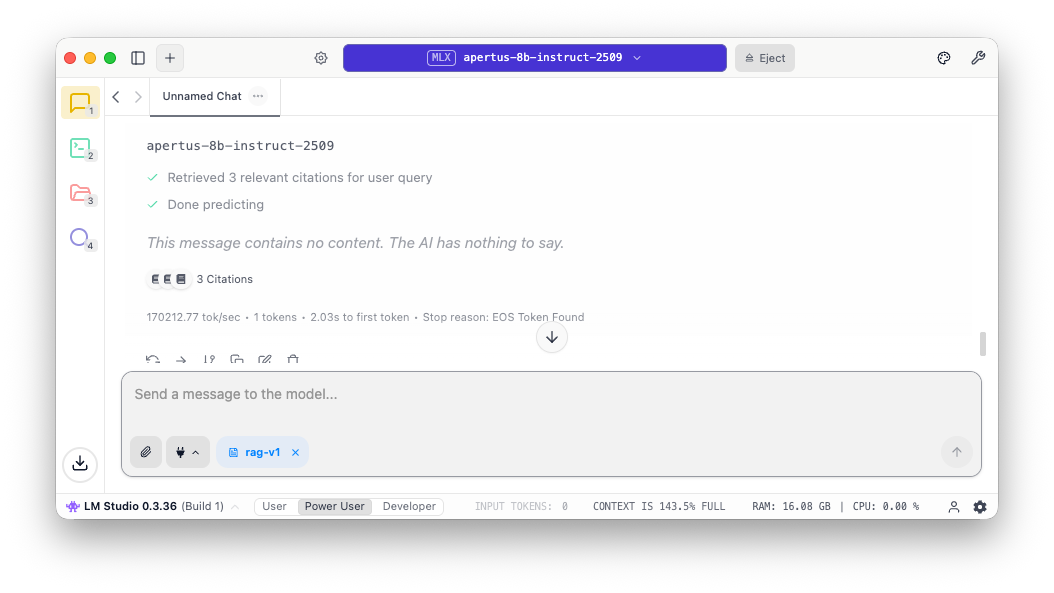
When one runs out of context window (uploading too many files into the RAG, having a very long prompt / system prompt, or using tools), the message appears “The AI has nothing to say”. Keep an eye on the status bar, where it is clear what is going on - that’s the 143.5% full message in the screenshot:
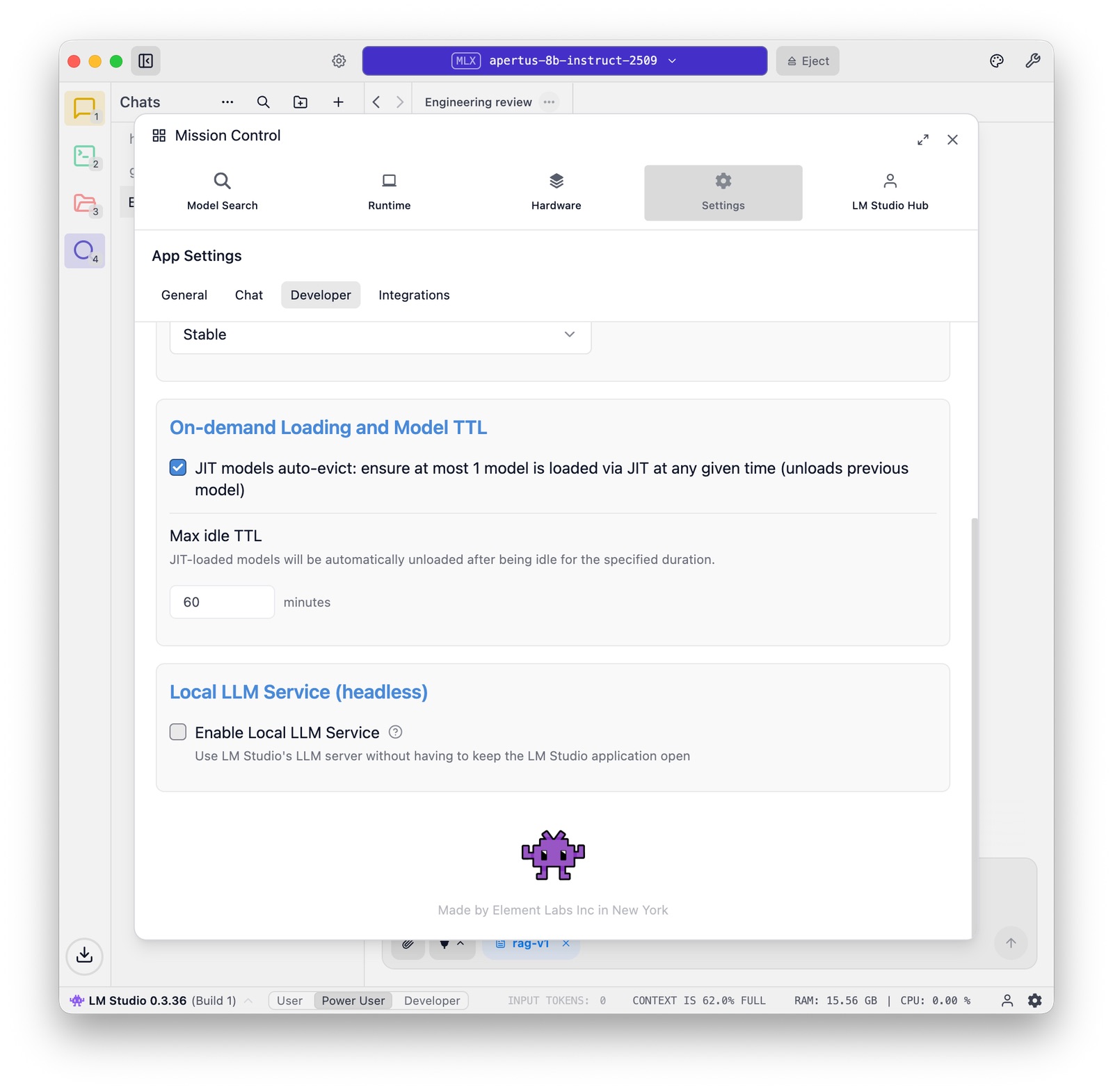
LM Studio carefully manages memory, in particular when multiple models come into play. There are some relevant options at the bottom of the Settings panel:
Benchmarking
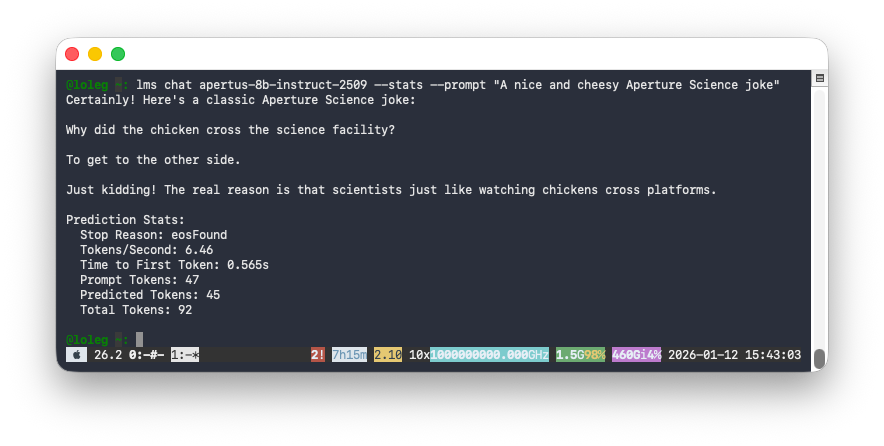
The Local LLM Service makes it possible to chat with Apertus from the LM Studio CLI, which gives us a handy way (--stats option) to test performance.
Here you can see that it takes about half a second to first token on a Macbook M4, providing a modest but reasonable 6.46 tokens per second (for comparison, humans on average read at 5 tokens per second):
You can also use other command line tools, like the llm utility or anything-llm that communicate with LM Studio using the API.